
Alternative (alt) text is descriptive text added to visual elements like images, icons, charts, and photos. Screen readers and other assistive technologies rely on alt text to communicate visual content to users who cannot see the images. Alt text ensures your designs are accessible to all users and aligns with accessibility standards like Web Content Accessibility Guidelines (WCAG), Section 508 (U.S.), and AODA (Canada).
Why Alt Text Is Important
Screen readers read alt text as an alternative to visual content. This allows users with vision impairments to understand the purpose and context of images, icons, or charts. Without alt text, users miss critical information or context that might be conveyed visually.
When to Add Alt Text or Mark Elements as Decorative
Not all visual elements require alt text. Some are purely decorative and do not convey meaningful content. Use the following comparison to determine when alt text is needed:
Decorative elements |
Elements requiring alt text |
Add visual interest |
Require or accept user input (like a "download" button |
Create an aesthetic effect |
Present data, such as a table or chart |
Only purpose is to fill in blank space |
Represent a setting, location, emotion or concept related to other content being presented |
Are not crucial to understanding presented information |
Serve a purpose in the context of the content they appear near |
Represent a formatting element, like abstract shapes or stylized lines separating two sections of text |
Explain or clarify nearby text relating to visuals or other non-text elements |
What Alt Text Should I Add to Decorative Images?
For purely decorative visuals, use alt text such as “Decorative image” or “Decorative element”. Screen readers will skip these automatically.
How to Write Accurate and Helpful Alt Text?
Think about how you would describe an image to someone who cannot see it. Ask yourself:
What is important for the user to know?
What context is relevant?
What details are unnecessary?
Good alt text should be:
Functional – communicates purpose
Informative – describes the content clearly
Contextual – explains why it appears near other elements
Focused – avoids irrelevant details
Determine whether the image is meant to convey specific information or if it is meant to evoke a feeling or emotion.
Should I Include Text in the Alt Text Describing Non-Text Content?
Non-text content might include:
Product images
Logos
Videos
Infographics
The alt text should reflect the purpose of the visual. For example, an image of yogurt dip could be described differently depending on context:

Recipe page: “A bowl of whipped yogurt dip drizzled with olive oil and sprinkled with fresh dill and spices, next to a piece of brown bread.”
Tableware ad: “A modern earthenware bowl, 6” across, speckled grey finish, containing yogurt dip, placed next to a slice of bread.”
Dairy product website: “A bowl of dip made with locally sourced organic yogurt, placed on a table next to a slice of brown bread.”
An image, video, or other element of non-text content may include text or other characters that you might need to describe in alt text.

In the animated GIF above, a toddler is standing in front of an adult. The toddler is holding a box with writing on it. You may describe this image several different ways, depending on the context in which it appears:
On a website with an article about parenting (e.g., "A 2-year-old boy stands in front of his mother, wearing a white t-shirt and jeans and a zip-up hoodie. The hood is up and two small ears on the hood make it look like the boy look like a teddy bear. His mother kneels behind him, helping him stand and hold a board game box.")
On a website advertising children's toys and boardgames (e.g., "A toddler holds the party game 'Twister' in a box. His mother, who kneels behind him, is helping the boy stand and hold the box.")
On a website advertising children's clothing (e.g., "A two-year old boy wears one of our plush, fuzzy Teddy Bear hoodies in the color Brown, with two bear ears on the hood. His mother kneels behind him, helping the boy stand and hold a box.")
Depending on what information is important for the reader to understand, the alt text can shift the focus to highlight or minimize details, including any visible characters like text or numbers that appear in the non-text content.
How Do I Write Alt Text for Images of Pure Text?
If a visual contains text, transcribe it exactly in the alt text. Avoid unnecessary phrases like “image of text that reads…” because screen readers already identify the element as an image.
Example:
Visual: Block of text in an infographic.
Alt text: “Writing alt text? Ensure that any images of text are transcribed exactly as they appear. A screen reader will automatically identify the element as an image.”
How do I Include Complex Data in Alt Text?
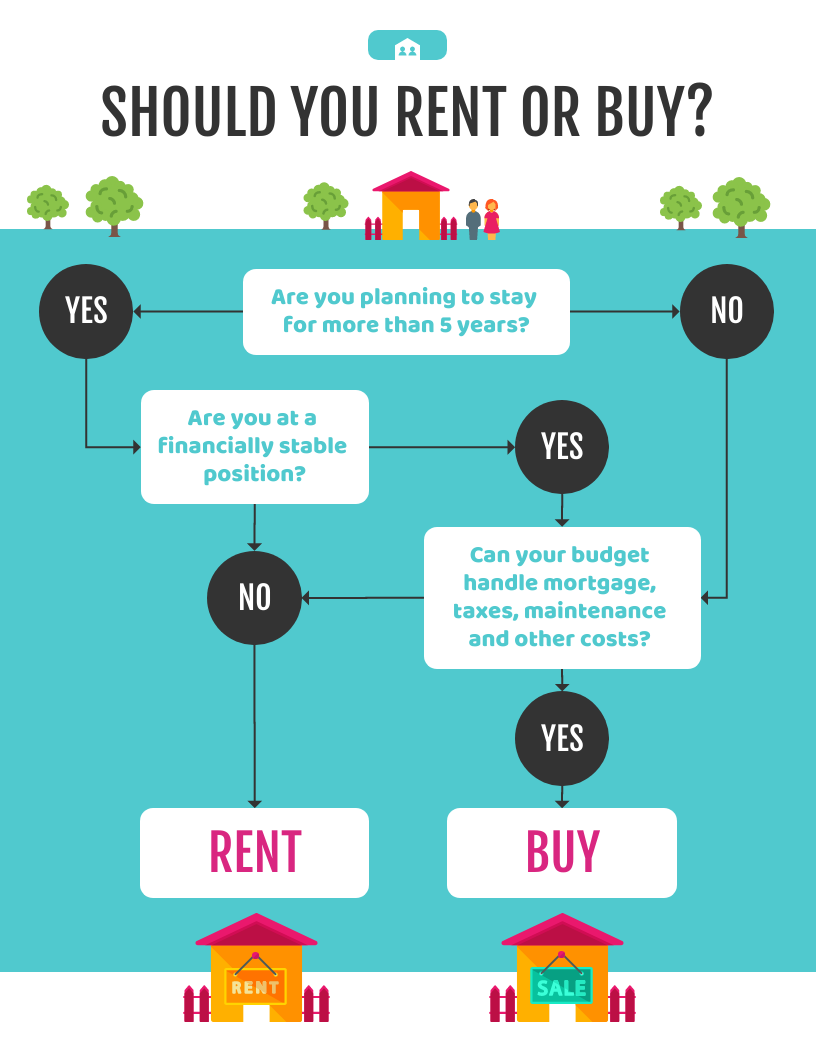
Some visuals contain complex data, like charts, tables, maps, or flowcharts. For these, use either short or long alt text depending on context:
-
Short alt text: Gives a brief overview, helpful when details are not critical.
Example:
"Flowchart titled 'Should You Rent or Buy?'"
-
Long alt text: Provides all necessary details to understand the visual fully.
Example:
"Flowchart titled 'Should You Rent or Buy?'. Start: Are you planning to stay for more than 5 years? Yes/No leads to further questions about financial stability, budget, and costs, ending in 'Rent' or 'Buy' outcomes. Each flow is detailed to provide complete guidance."
How Can I Summarize Data in a Chart or Infographic?
For charts, include both the key findings and relevant context:
Example Bar Chart:
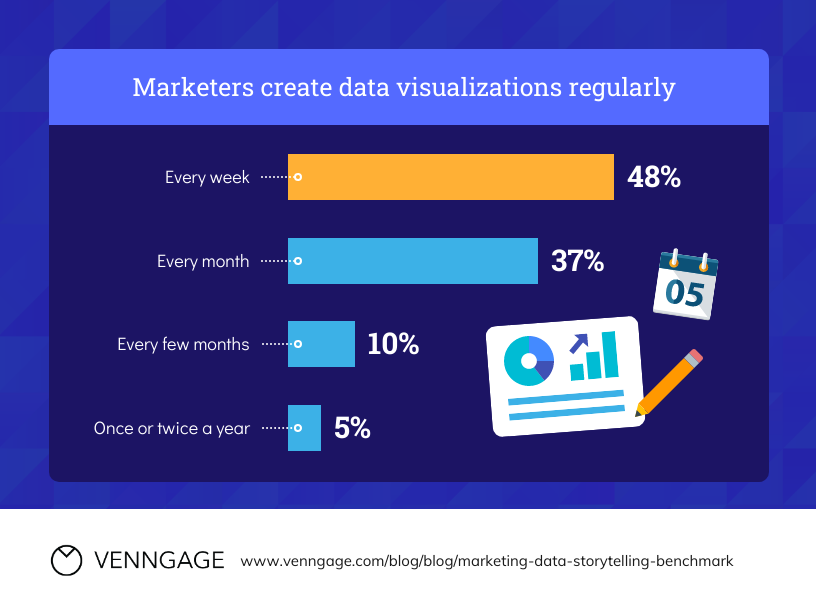
Title: “Marketers create data visualizations regularly”
Long alt text: “Most (48%) marketers create data visualizations weekly, 37% create them monthly, 10% every few months, and 5% once or twice a year.”
This allows users to understand the insights without needing to see the visual.
Quick Tips for Meaningful Alt Text
Be succinct and use plain language
Use active voice
Avoid redundant words like “picture of…” or “icon of…”
Avoid abbreviations unless necessary
Always end alt text with a period
💡 Tip: For images of text, always transcribe exactly as written. Screen readers will automatically recognize the image type.

Curious about upgrading? Compare our plan features side by side.